
HDMI CEC fails because manufacturers implement the protocol differently, with Samsung’s Anynet+ and Sony’s Bravia Sync often incompatible with each other. The system’s 400Hz bus speed creates noticeable command delays, and when you connect multiple devices, address conflicts occur since only 15 unique device IDs exist. I’ve found that mixed-brand setups experience the most problems, while devices power on unexpectedly due to One-Touch Play features triggering unwanted activation chains. The sections below explain how to troubleshoot these issues and when disabling CEC completely makes sense for your setup.
Key Takeaways
- Different manufacturers use unique CEC implementations (Anynet+, Bravia Sync, SimpLink), causing compatibility issues when mixing brands.
- The 400Hz bus speed limitation creates communication delays, resulting in slow command processing and noticeable lag.
- Address conflicts occur when devices share logical addresses or exceed the 15-device limit, causing response failures.
- Software updates and different protocol versions between manufacturers can disrupt CEC functionality and device communication.
- One-Touch Play and device priority settings can trigger unexpected power-ons and unwanted input changes across connected devices.
What Is HDMI CEC and Why Does It Matter?
Have you ever tried to control multiple devices connected to your TV, only to find yourself fumbling around with several remotes? That’s where HDMI CEC comes into play, and it’s probably already working behind the scenes for you. This handy feature allows your devices to communicate through pin 13 of the HDMI cable, making it possible for your TV remote to control everything from soundbars to Blu-ray players and streaming devices. It can handle up to 15 devices in total, sending commands at a speedy 400Hz.
So why does this matter? Well, think about the convenience of one-touch play, system standby, and volume control all in one remote. That simple functionality can really enhance your viewing experience. But, there’s a catch. Because different manufacturers implement HDMI CEC in their own ways—like Samsung’s Anynet+ versus TCL’s version—you may run into some compatibility woes.
It’s pretty common for commands to fail due to these differences, so troubleshooting can come into play. Try checking your device menus to see if HDMI CEC is enabled; sometimes it’s just a setting that needs flipping. If that doesn’t work, tools like `cec-ctl` are great for digging into your network setup and resolving any address conflicts.
Samsung Anynet+ vs Sony Bravia Sync: Decoding Brand CEC Names
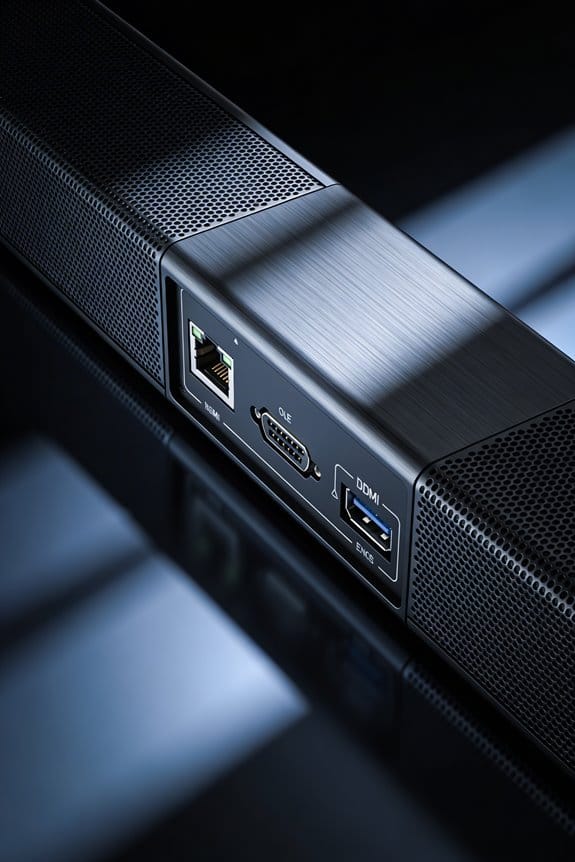
The world of HDMI CEC can get really confusing, especially when each big TV brand comes up with its own name for basically the same tech. Samsung calls it Anynet+, Sony names it Bravia Sync, LG has SimpLink, and Vizio sticks with CEC. They all work on the same principles, transmitting the same HEX command codes on HDMI pin 13 at around 400Hz. So, what’s the deal with these brands?
Let’s dive into some specifics. If you’ve got a Samsung TV, here’s what you can expect from Anynet+:
- You can easily control multiple devices with one remote thanks to remote control pass-through.
- One-touch play is a nice feature for quick access to your favorite content.
- Just a heads-up: to access the menu, you’ll need to navigate through Settings > General > External Device Manager.
On the flip side, Sony’s Bravia Sync might leave you scratching your head sometimes. It’s true that it doesn’t always play nice with devices from other brands. You might run into compatibility problems that make communication between devices a bit tricky. So, why does this matter? Well, CEC works best when all your devices are from the same brand. It keeps things simple and hassle-free.
If you’re trying to streamline your setup, just remember that mixing brands could lead to issues. You may want to stick with one brand for all your devices where possible. It can save you a lot of headaches down the line.
How to Enable HDMI CEC on Your TV and Devices
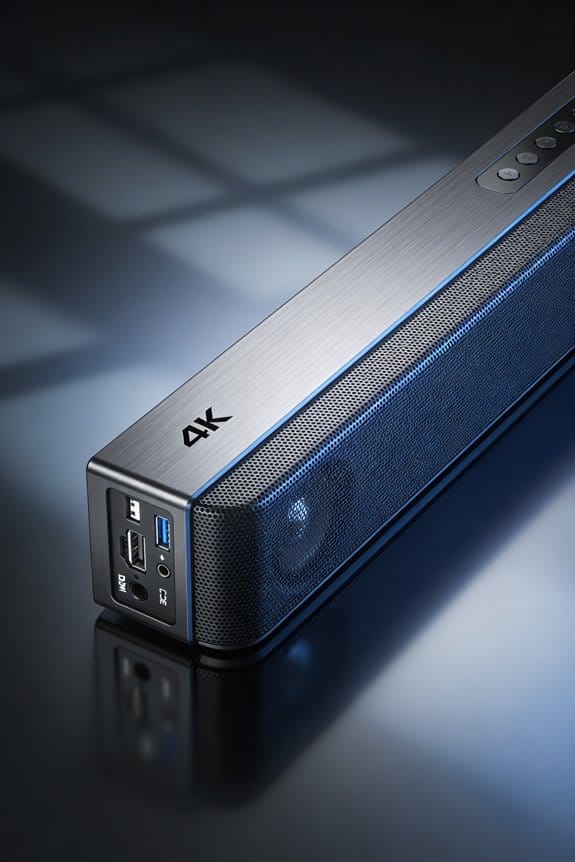
Setting up HDMI CEC can feel a bit like a scavenger hunt in your device menus. But don’t worry, I’ll help you navigate through it step by step.
Start by diving into your TV’s HDMI settings. You’ll usually find this in the main settings menu, often under “General” or “External Device Manager.” Keep an eye out for CEC features, which go by names like Anynet+, Bravia Sync, or Simplink, depending on your brand. Once you find the right setting, just toggle it to “On.” This small action activates communication with your other devices.
Now, it’s time to turn on CEC for each connected gadget—think Blu-ray players, soundbars, or streaming boxes. Head over to their settings menus and look for something related to HDMI or system settings. Sometimes these options can be tricky to find, so if you’re stumped, don’t hesitate to check the user manuals.
Once everything’s powered on with CEC enabled, there’s a key step that’s often overlooked. Unplug all your devices for about 30 seconds. This little trick helps the CEC network rebuild itself and assign the right addresses to each device. Trust me, it makes a difference!
So, why does this matter? Enabling HDMI CEC can really simplify how you control all your devices with one remote, making your viewing experience smoother. Honestly, once you’ve set this up, you might wonder how you managed without it!
In short, it’s all about ensuring that your devices can talk to each other seamlessly. Have you tried setting up CEC before, or is this your first time?
Why Your HDMI CEC Devices Won’t Communicate?
Have you ever tried to get your HDMI CEC devices to talk to each other and felt like you were hitting your head against a wall? You’re not alone! HDMI CEC communication failures pop up for a bunch of reasons that can leave you frustrated.
First off, let’s talk about CEC compatibility issues. Manufacturers don’t always stick to the same protocol version. This can cause headaches when, for example, your Samsung Anynet+ device decides to ignore commands from a Sony Bravia Sync piece of equipment.
Next, command transmission delays can also be a pain. The bus speed is limited to 400Hz, which translates to only about 30-36 bytes per second. That means there’s often a noticeable lag between when you hit a button on your remote and when the device actually responds.
Ever connected multiple playback devices to one HDMI input through a switch and experienced device pairing problems? Conflicts can happen when physical addresses clash, making it tough for your devices to pair correctly.
Software update conflicts are another hassle. Occasionally, firmware changes can mess with CEC behavior so that devices that were once compatible suddenly can’t recognize each other. So, how do you tackle these issues?
Try this: before getting too deep into troubleshooting, check each device to see if it shows an active CEC status in its settings menu. It’s a simple step but can save you a lot of time and headaches.
To sum it up, HDMI CEC issues can stem from compatibility, delays, pairing conflicts, and software updates. Have you run into any of these problems recently?
Why CEC Address Conflicts Break Your Setup?
Have you ever struggled with your devices not talking to each other, even when they’re supposed to? This can often happen when two devices try to grab the same logical address on your CEC network. For instance, if your TV assigns itself address 0, but your soundbar is also trying for address 0, you’ve got a Device Communication Conflict on your hands. This can mess up the whole system and stop commands from getting where they need to go.
You might notice that your devices suddenly stop responding or, even worse, change inputs on their own. This could be a sign of Network Topology Challenges. Remember, there’s a limit of 15 devices, and each one needs a unique ID. When there’s poor Logical Address Management, that’s when overlaps happen and chaos can ensue.
Here’s a tip: use cec-ctl tools to check for any duplicate addresses in your setup. It’s also a good idea to power your devices on one by one. This lets each device register its address before you connect the next one. You can take it a step further by manually assigning logical addresses in the device settings, which helps prevent conflicts right from the get-go. Some manufacturers try to handle this automatically, but the truth is, different brands often have inconsistent ways of dealing with address conflicts.
Why Devices Turn On When You Don’t Want Them To?
Have you ever turned on your TV just to catch a show, and suddenly, your Blu-ray player, soundbar, and streaming box all decide it’s their time to shine? It’s annoying, right? This happens because of a feature called CEC’s One-Touch Play, which sends power-on signals through the HDMI network without you even asking. When you pick an HDMI input on your TV, it sends a wake-up call to all the connected devices, and next thing you know, they’re all fired up.
Here’s the thing: device priority settings play a big role in what turns on first. If your soundbar is set to a higher priority than your Blu-ray player, it might trigger other gadgets to wake up as well. So, if you’re not keen on this automatic activation dance, here’s what you can do. Head over to your TV’s settings menu and look for CEC options, like HDMI-CEC or Anynet+. Turning it off should solve your problem.
Not ready to let go of CEC altogether? You can also turn off One-Touch Play on the devices you’d rather not have turning on by themselves. Whatever route you choose, it’s all about regaining control over your setup.
Truth is, nobody likes fumbling with multiple remotes or trying to figure out why the whole entertainment center is lit up when all you wanted was to relax and watch your favorite show. So, take a moment to tweak those settings and create a more peaceful viewing experience. Have you tried any of these adjustments yet, or are you still wrestling with the chaos?
Why HDMI CEC Commands Feel Sluggish and Delayed?
Ever pressed a button on your remote and felt like you’re waiting for a dial-up connection to kick in? That frustrating delay with your soundbar isn’t a glitch; it’s the HDMI CEC‘s fault. The technology’s bus speed is limited to just 400Hz, which means it takes a long time for commands to zip across the HDMI cable at only 30-36 bytes per second. This slow processing creates that annoying lag between your input and the device finally doing something.
So what does this mean for your daily viewing? Well, when you switch inputs, tweak the volume through System Audio Control, or kick off those One-Touch Play sequences, you might notice those delays (and let’s be honest, they can feel endless). The bus speed forces commands to line up and wait their turn, especially if you’ve got multiple devices trying to chat at once. It’s like being at a busy restaurant where everyone’s trying to get the waiter’s attention—frustrating!
Now, some higher-end systems tackle this lag with better firmware, but the base 400Hz speed limit is something you just can’t shake. It doesn’t matter how fancy your setup is; that sluggish response is built into the CEC system itself, making a quick response feel like a distant dream.
To sum it up, if you’re hoping for instant gadget magic, you might need to adjust your expectations. So next time you hit that remote, just know there’s a bit of a wait coming your way. Have you noticed this delay in your own setup?
How to Fix HDMI CEC Problems Step-by-Step
Are you tired of your TV remote not working properly with your other devices? HDMI CEC issues can be frustrating, but getting everything to communicate smoothly isn’t as daunting as it seems. Here’s a practical approach to troubleshoot those pesky problems.
Start by checking if CEC is enabled on all your devices. Believe it or not, many manufacturers have this feature turned off by default or buried under specific brand names. For instance, if you have a Samsung TV, look for a setting called Anynet+. On Sony, it’s usually Bravia Sync, while LG users should check for Simplink. Make sure these are all activated on each device connected via HDMI.
Next, it’s crucial to confirm that all your gear is compatible with CEC. Not all devices support this feature equally, especially older ones. So, take a moment to read through your device manuals or check the manufacturers’ websites to see their CEC specs. If a device is missing full compliance, that might be your culprit.
Another simple step is to look at your HDMI cables. If any are damaged, it’s time to swap them out for certified high-speed cables. CEC relies on a solid connection, and a faulty cable can disrupt communication.
Once the cables are sorted, power cycle everything. Just unplug all your devices for about 30 seconds. This helps reset the CEC network and lets everything reassess its logical addresses, often clearing up any quirks.
Fixing these problems may take a bit of patience, but with these steps, you should be well on your way to smoother device interaction. So, what’s your next move—are you ready to dive into your settings?
When to Disable HDMI CEC Completely?
Ever had your TV switch inputs on its own or felt a delay so frustrating you think it’s stuck in slow motion? If you’ve been dealing with these annoying glitches, it might be time to take a closer look at HDMI CEC. This feature is meant to simplify your home theater experience by allowing devices to communicate, but sometimes it can cause more headaches than it’s worth.
You might want to disable HDMI CEC if you’re in any of these situations:
- You have multiple gaming consoles that seem to power on without warning.
- Your home theater setup includes devices from different brands that don’t play nice, like Samsung Anynet+ and LG SimpLink.
- You’re using equipment in a commercial space, where unexpected input changes can derail presentations.
If your devices are waking from standby at random, or your TV decides to change inputs without you even touching the remote, it’s probably time to turn off CEC. And let’s not forget about those frustrating delays caused by the 400Hz bus latency—you know the ones that feel like they take forever?
Try this: Head to your TV’s settings menu, find the CEC option under HDMI or external device settings, and toggle it off. If you’ve got a soundbar, Blu-ray player, or receiver connected, repeat this process on each of those devices, too. This should help you eliminate all CEC network communication.
Truth is, you deserve a setup that works seamlessly without these annoyances. So, are you ready to take back control of your devices?
Frequently Asked Questions
Can HDMI CEC Work Through an AV Receiver or HDMI Splitter?
Yes, I’ve found CEC works through most AV receivers with proper HDMI ARC/eARC support and AV receiver compatibility settings enabled. However, HDMI splitter functionality typically blocks CEC signals since splitters don’t pass control commands between devices effectively.
Does Using a Longer HDMI Cable Affect CEC Signal Reliability?
CEC operates at just 400Hz, making it vulnerable to interference. I’ve found long cable distance rarely causes issues under 50 feet, but cable quality impact matters more—cheap cables with poor shielding degrade the one-wire bus signal markedly.
Will CEC Commands Work if My TV Is in Standby Mode?
Yes, I can confirm CEC commands work in standby mode—that’s actually the point. The standby functionality enables device communication even when your TV’s off, allowing features like One-Touch Play to wake everything up automatically.
Can I Control Multiple Devices of the Same Type via CEC?
Yes, but you’ll likely face device compatibility issues since CEC assigns similar logical addresses to identical device types. This creates command conflicts—your TV can’t distinguish between two Blu-ray players, so commands affect whichever device responds first.
Does HDMI CEC Increase Power Consumption on Connected Devices?
CEC’s constant communication consumes minimal power—we’re talking milliwatts. I’d say the energy savings from automatic standby far outweigh this tiny drain. However, device compatibility issues might prevent those power-saving features from working properly on your setup.