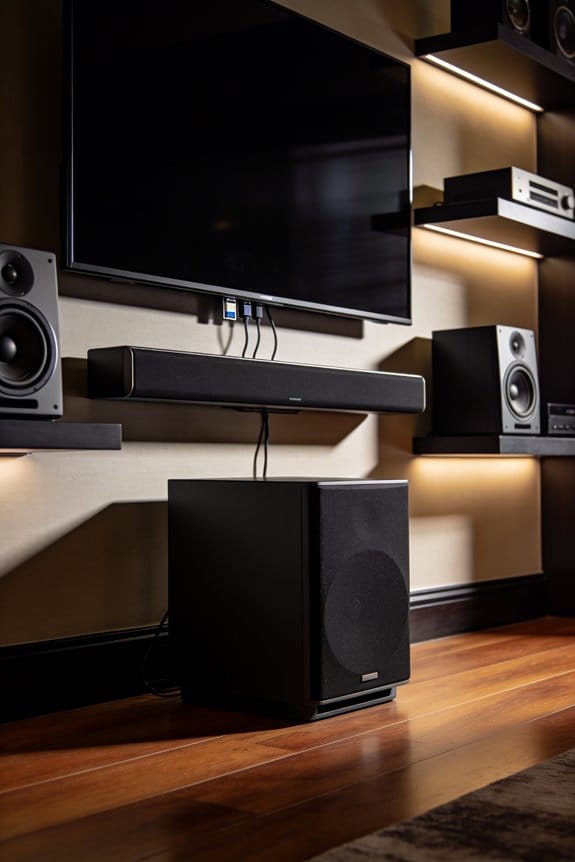

HDMI 2.1’s eARC feature delivers 37 Mbps bandwidth compared to HDMI 2.0’s 1 Mbps, which enables uncompressed audio formats like Dolby TrueHD with Atmos and DTS-HD Master Audio to pass through from your TV to your receiver without quality loss. I’ll explain that this requires Ultra High Speed HDMI cables and eARC-enabled ports on both your TV and receiver, typically found on HDMI ports 2 or 3. The technology supports up to 32 audio channels and eliminates the compression artifacts present in older ARC connections. Below, you’ll find the complete setup process and troubleshooting guidance.
Key Takeaways
- HDMI 2.1’s eARC feature provides 37 Mbps bandwidth, enabling uncompressed audio formats like Dolby Atmos and DTS-HD Master Audio pass-through.
- eARC supports up to 32 audio channels and lossless formats, eliminating compression artifacts present in older HDMI 2.0 connections.
- Ultra High Speed HDMI cables are essential for eARC functionality, supporting the full 48 Gbps bandwidth required for high-bitrate audio.
- Gaming benefits from eARC through uncompressed 7.1 surround sound and Dolby Atmos, providing immersive and accurate positional audio.
- Both TV and AV receiver must have eARC-enabled ports and updated firmware to properly negotiate highest quality audio formats.
HDMI 2.1 Audio Bandwidth: 37 Mbps vs. HDMI 2.0’s 1 Mbps
Let’s face it: if you’ve got HDMI 2.0, dealing with audio pass-through can be kind of a drag. While it does support the original Audio Return Channel (ARC), you’re stuck with just a max bandwidth of 1 Mbps. What does that mean for you? Well, you can only enjoy compressed audio formats like Dolby Digital and DTS, which just don’t cut it for those lossless tracks.
Now, enter HDMI 2.1. It brings enhanced ARC (eARC) into the mix with a whopping 37 Mbps bandwidth—yeah, that’s a serious upgrade. This means you can finally get your favorite uncompressed formats like DTS-HD Master Audio, DTS:X, Dolby TrueHD, and Dolby Atmos at 192 kHz, 24-bit resolution. If you’re a music lover or a movie buff, this is a big deal. Imagine streaming high-definition music or watching videos in rich, audio clarity.
So, what else does this mean for you? The expanded bandwidth means you can support up to 32 audio channels. That’s enough to future-proof your setup for any immersive surround sound configurations you might want down the line. Plus, you’ll get features like lip-sync correction and automatic eARC capability discovery between your devices—pretty handy, right?
In short, if you’re serious about audio quality, this upgrade is something to consider. Are you ready to enjoy a better sound experience?
How Does eARC Unlock Dolby Atmos and DTS:X Pass-Through?
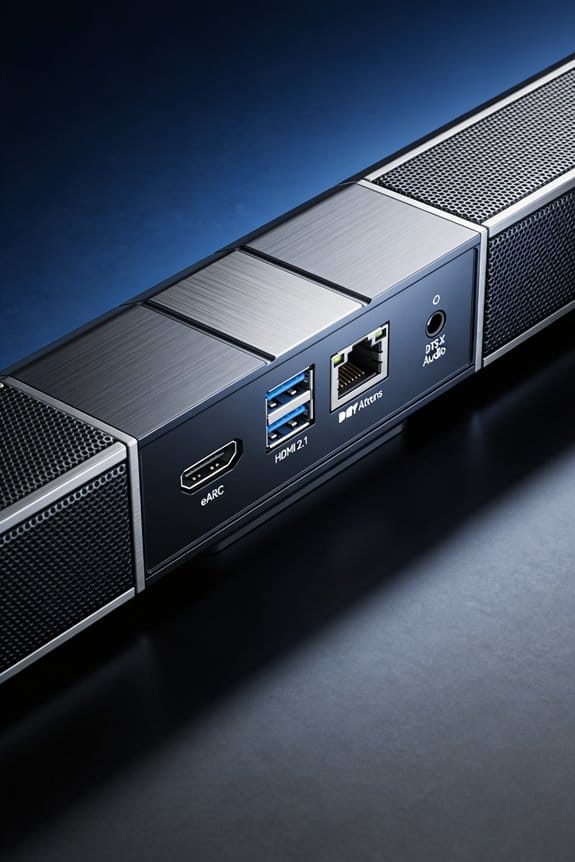
Why bother with eARC when you’ve got Dolby Atmos and DTS:X formats on your radar? Well, traditional ARC just can’t keep up. With a bandwidth of only 1 Mbit/second, it struggles to handle the high-bitrate data these formats require. Since Dolby Atmos and DTS:X throw in object-based audio metadata, your setup is going to need a lot more bandwidth than just what compressed formats like Dolby Digital offer.
Consider this: eARC can handle up to 37 Mbits/second. This means you can pass through lossless audio like Dolby TrueHD with Atmos and DTS-HD Master Audio with DTS:X without breaking a sweat. You’re talking uncompressed sound that can deliver 7.1 channels or more at 192 kHz and 24-bit resolution.
What does that translate to for you? Simply put, audio quality stays spot-on from the source to your receiver. You won’t lose any of those height channels or the intricate object positioning that make you feel like you’re right in the middle of the action. Your AV receiver does the heavy lifting by decoding all that rich spatial audio information, allowing for precise speaker placement and a truly immersive sound experience—minus those annoying compression artifacts.
Lossless Audio Formats Supported by HDMI 2.1 eARC
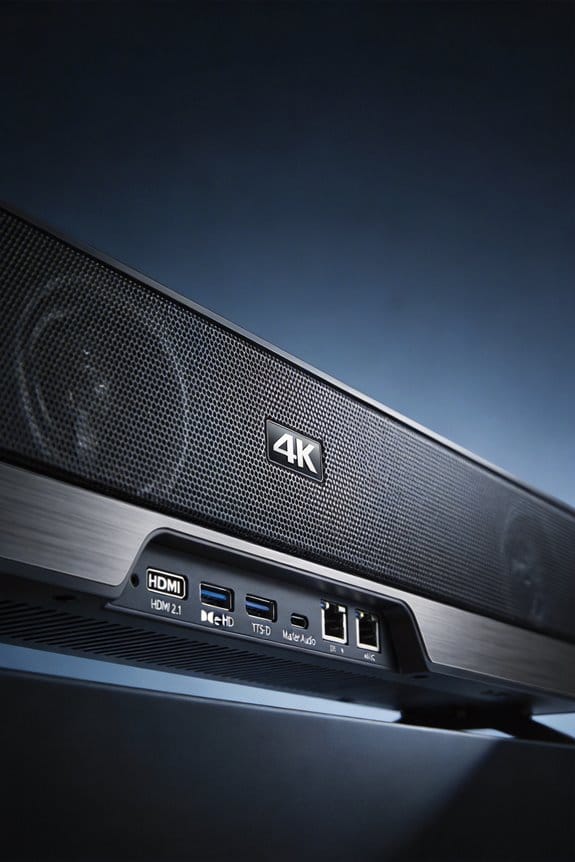
Are you tired of worrying about whether your audio setup is delivering top-notch sound quality? With HDMI 2.1’s eARC, you can enjoy several lossless audio formats without any issues. This tech ensures you’re getting the best sound possible from your devices, thanks to its impressive bandwidth of up to 37 Mbits per second.
Let’s dive into what you can actually transmit through eARC. Think of these as your go-to formats for high-fidelity audio:
- Dolby TrueHD with Atmos metadata
- DTS-HD Master Audio alongside DTS:X
- PCM audio at 192 kHz and 24-bit resolution
- Uncompressed formats for 5.1, 7.1, and even 32-channel setups
What makes this so important? Well, these formats help keep the audio pristine as it moves from your source device to your soundbar or AV receiver. You can say goodbye to lossy compression that older ARC connections relied on, which could only handle about 1 Mbit per second. Instead, you’ll enjoy every little detail of the sound, including those immersive height channels and precise object-based audio positioning.
So, if you’ve been thinking about upgrading your audio experience, eARC may just be what you’re looking for. It’s all about preserving the quality you love without pixelating or sacrificing sound aspects. Honestly, isn’t it nice to enjoy your favorite movies and music exactly as they were meant to be heard?
In short, HDMI 2.1 eARC brings a world of lossless audio to your home setup. With the right gear, you’ll hear every note and soundstage like never before. What audio format are you most excited to experience in full quality?
Ultra High Speed HDMI Cables Required for eARC
Setting up eARC can be a bit tricky, especially when it comes to your HDMI cables. Have you ever tried to enjoy a high-bitrate audio format only to have the sound drop out? That’s where the right cable comes in. To make sure you’re getting the full experience, it’s essential to have an Ultra High Speed HDMI cable, because eARC needs a good amount of bandwidth—up to 37 Mbits/second for audio data.
So what’s the deal with these fancy cables? Standard HDMI cables just won’t cut it if you want to avoid those annoying audio problems. Ultra High Speed HDMI cables can handle the full 48 Gbps necessary for eARC functionality. Look for a certification label on the packaging; that’s your assurance that it meets HDMI 2.1 specs.
These cables are your ticket to supporting awesome audio formats like:
- High-bitrate lossless audio
- DTS-HD Master Audio and Dolby TrueHD
- Uncompressed 7.1 and object-based audio
Don’t just stick with older cables; swapping them out can make a significant difference in sound quality. You want reliability, especially if you’re all in on eARC.
In short, you’ll want to invest in Ultra High Speed HDMI cables for a smooth eARC experience. After all, who doesn’t want crystal clear sound? What’s holding you back from making that upgrade?
Enabling eARC on Your Receiver and TV
Have you ever set up your new TV and receiver, only to find you can’t get the best sound out of them? It’s a common issue, especially when it comes to enabling eARC. Even if both your devices support it, you won’t be able to enjoy all those amazing audio formats until you manually switch it on in the settings.
To get started, head to your TV’s audio settings. Look for options related to HDMI-eARC or HDMI-ARC, and make sure it’s set to “enabled” or “auto.” This step is crucial because if it’s not activated, your TV won’t send the high-quality audio signal. Then, check out your AV receiver. Go into its HDMI menu and make sure eARC mode is turned on for the right port – usually, it’s the HDMI 1 or the one labeled ARC.
It’s also worth noting that some receivers might need a firmware update to play nice with full eARC features. So, definitely ensure you’re running the latest software version. Once that’s done, grab an Ultra High Speed HDMI cable and connect your TV’s eARC port to your receiver’s eARC port.
Here’s the trick: once you’ve enabled everything, your system should automatically negotiate to deliver the highest quality audio format available. You’re looking at formats like Dolby Atmos and DTS:X, which can make a world of difference in your viewing experience. Trust me, once it’s all set up, you’ll realize just how crucial these steps are for getting the most out of your home theater.
HDMI 2.1 Audio for Gaming: ALLM and Low-Latency Sound
If you care about gaming sound, you’ll want to get a grip on how HDMI 2.1‘s Auto Low Latency Mode, or ALLM, works with your console’s audio. When you fire up a game on your Xbox Series X or PS5, ALLM kicks in and switches your TV to Game Mode automatically. This helps cut down input lag to just 10-20 milliseconds. And let me tell you, that means better sound sync between what you see on-screen and what you hear.
But the benefits of low latency aren’t just about visuals. When ALLM turns on, your audio receiver gets to work fast—usually processing sound in under 5 milliseconds. This helps keep the cool audio features from slowing things down. Ever notice how crucial it is to hear every dialogue, gunshot, or footstep right when it happens? That’s the kind of pinpoint accuracy that ALLM helps deliver.
And here’s the best part: eARC, or enhanced Audio Return Channel, keeps that timing on point while pumping out stunning, uncompressed 7.1 surround sound or full Dolby Atmos. So, why does this matter? It means your gaming experience feels way more immersive and responsive.
In short, if you’re serious about your gaming audio, paying attention to HDMI 2.1 and ALLM can totally step up your game. Think about it: Are you ready to experience sound like never before?
Fixing eARC Dropouts and No-Sound Errors
Have you ever settled in for a movie night only to deal with frustrating eARC dropouts or silence from your sound system? It’s a real buzzkill! But don’t worry; I’ve got some practical tips to help you tackle these problems head-on.
First off, check if eARC is turned on in your TV’s audio settings. It’s usually under Audio > HDMI-eARC > Enable. If it’s already on, try power cycling all your devices by unplugging them for about a minute. This simple trick often clears out any handshake issues.
Next up, take a look at your HDMI cable. Make sure you’re using an Ultra High Speed HDMI cable that can handle the 48 Gbps needed for high-quality audio. If any of your cables are longer than six feet, swap them out for certified versions. Lengthy cables can sometimes cause issues.
Updating firmware is another crucial step. You should check for updates on your TV, soundbar, and AV receiver in their respective menus. Many companies don’t hesitate to release patches that fix eARC problems, so this isn’t a step to skip.
Here’s the trick: if you’re experiencing weird control signals, try disabling CEC on all devices except for your main display. This can help eliminate conflicting signals that mess with your audio.
So, why does this matter? Because a seamless home theater experience can make all the difference. Follow these steps, and you should notice a significant improvement in your sound quality.
In the end, just remember that technology can be finicky, but with a bit of troubleshooting, you can get your eARC system humming along smoothly. What’s been your biggest challenge with home theater audio?
Do You Need HDMI 2.1 for Your Current Audio Setup?
When you’re weighing whether to go for HDMI 2.1 in your audio setup, think about what formats your devices actually support, what your speakers or soundbar can handle, and if you’re eyeing any upgrades in the near future.
If your receiver or soundbar only supports standard 5.1 Dolby Digital or DTS, then HDMI 2.0 will do just fine for these compressed formats. But if you’re streaming lossless audio like Dolby TrueHD, Dolby Atmos, DTS-HD Master Audio, or DTS:X from Blu-ray disks or streaming services, then you should be thinking about eARC for proper pass-through. So, what’s really the difference? It’s all about getting that high-quality sound without any hiccups.
Before you run out to buy new cables or gear, keep these points in mind:
- Make sure your TV has eARC-enabled ports—usually, that’s HDMI port 2 or 3.
- Check that your audio receiver supports eARC so you can handle uncompressed multichannel formats.
- Go for Ultra High Speed HDMI cables; they’ll ensure you get reliable audio bandwidth of 37 Mbits/second.
Truth is, assessing your current setup and future needs can save you a headache later. So, are you ready to make the right choice for your audio experience?
Frequently Asked Questions
Can HDMI 2.1 Pass Through 32-Channel Uncompressed Audio to Older Receivers?
Think of it like pouring water through different-sized pipes—I’m afraid your older receiver’s HDMI limitations won’t handle 32-channel uncompressed audio formats. You’ll need a receiver with HDMI 2.1 and eARC support for that bandwidth.
Does VRR Affect Audio Synchronization During Gameplay on PS5?
VRR doesn’t affect audio synchronization on PS5—it only adjusts the display’s refresh rate to match gameplay performance. HDMI 2.1’s lip sync correction guarantees audio fidelity remains perfectly aligned with visuals, so I won’t experience any audio lag during gaming.
Will HDMI 2.0 Cables Support Dolby Atmos at Lower Resolutions?
Yes, I can confirm HDMI 2.0 cables support Dolby Atmos at lower resolutions without issue. The hdmi 2.0 limitations only affect video bandwidth, not dolby atmos compatibility, since audio requires far less bandwidth than high-resolution video signals.
Can eARC Transmit 192 kHz Audio From Streaming Services Like Netflix?
While eARC technically supports 192 kHz audio, I must tell you that streaming services like Netflix don’t offer it. Their streaming quality caps at lower audio resolution—typically 48 kHz—regardless of your hardware’s capabilities.
Does Quick Media Switching Interrupt Audio When Switching Between HDR Content?
No, Quick Media Switching maintains seamless audio during HDR content shifts. I can confirm its HDR Compatibility guarantees uninterrupted sound while eliminating black frames between resolution changes, making Quick Switching ideal for varied content viewing without audio disruptions.