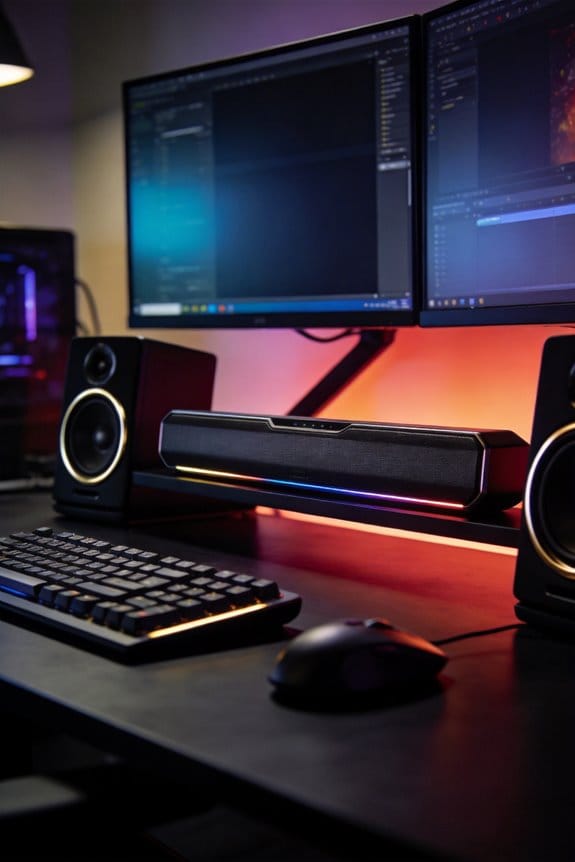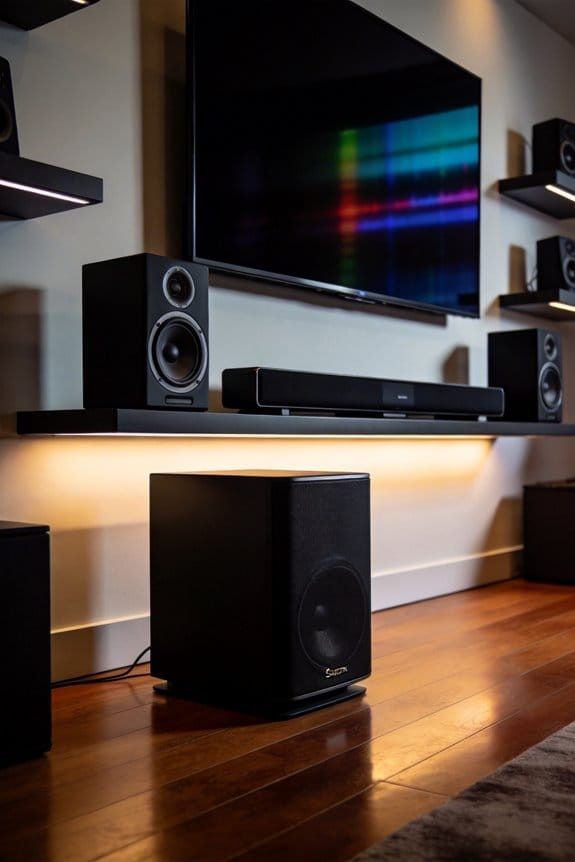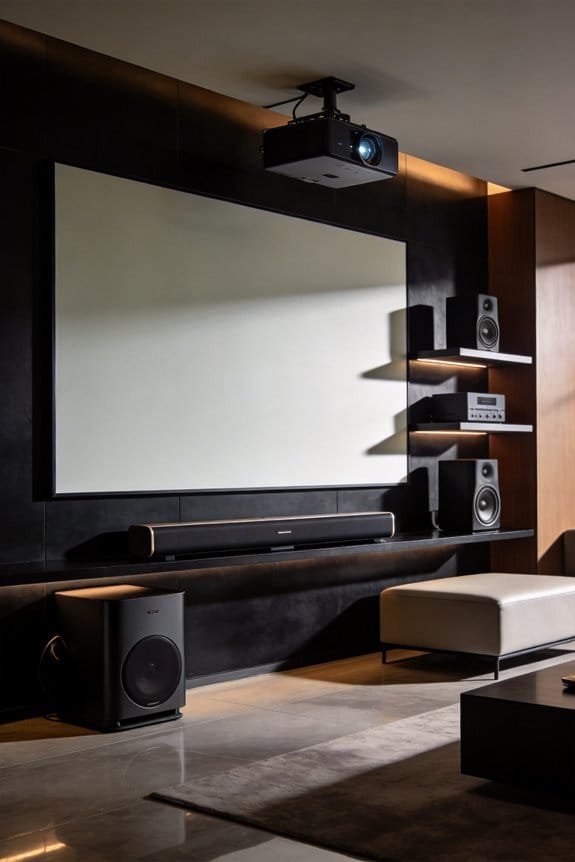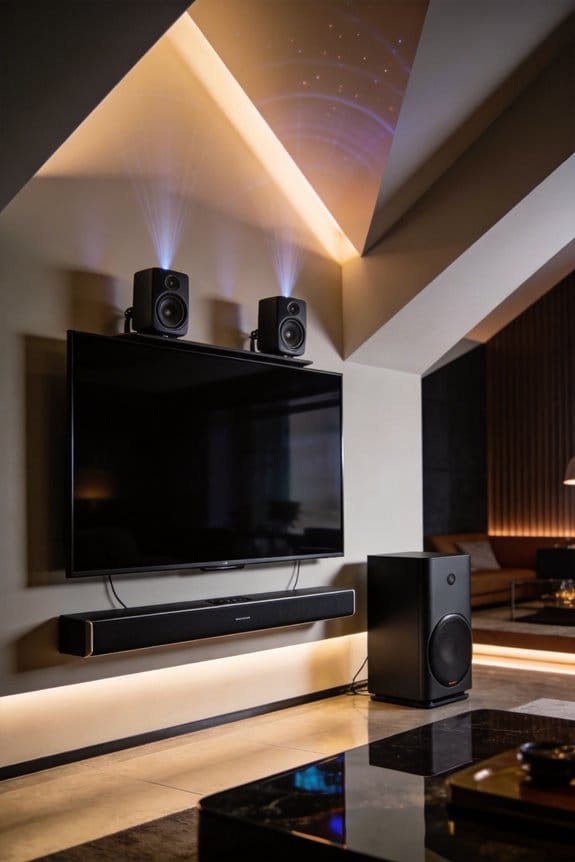
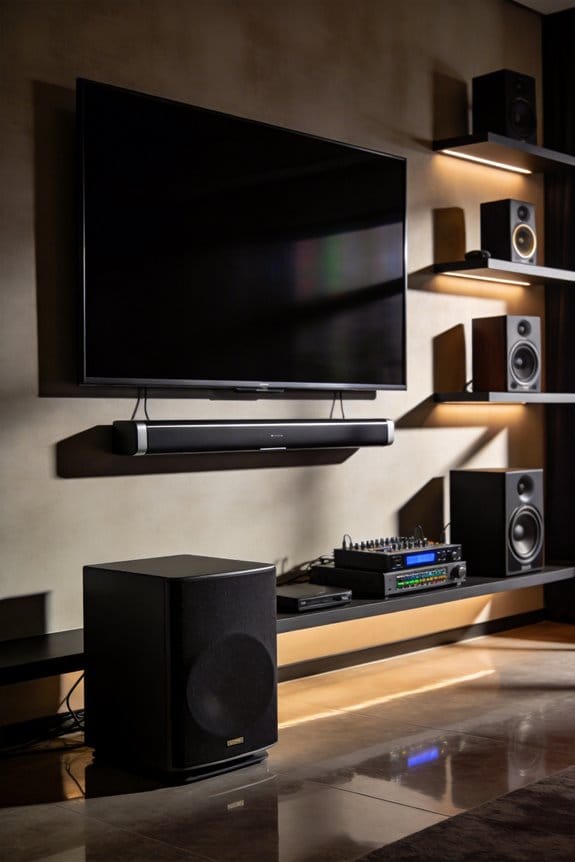

I’ll show you how to fix frequency problems in your listening room by measuring sound with a calibrated microphone like the UMIK-1, then programming corrections into a parametric equalizer. You’ll focus on troublesome peaks of 6 dB or more in the 200-1500 Hz range, where vocals and instruments need clarity, plus bass modes below 200 Hz. The process involves positioning your measurement mic at ear height, capturing frequency response data with REW software, identifying problem frequencies, and entering specific frequency, gain, and Q values into your equalizer to flatten the response curve for better sound quality throughout this guide.
Key Takeaways
- Use a calibrated measurement microphone like UMIK-1 with REW software to analyze your room’s frequency response accurately.
- Position speakers at ear level in an equilateral triangle, angled inward 15-30 degrees for optimal sound staging.
- Focus corrections on the 200-1500 Hz range for clarity and address peaks of 6 dB or more above baseline.
- Parametric EQ uses three parameters: Frequency selects problem areas, Gain adjusts level, and Q controls correction bandwidth.
- Re-measure after applying EQ filters to verify improvements and adjust again if speakers or furniture move significantly.
Essential Equipment: Microphone, Equalizer, and Software
Have you ever felt like your music or movies just don’t sound right in your room? You’re probably not alone. Many of us struggle with poor sound quality because of the way our space is designed. But there’s a way to fix this on your own with a little DIY room correction system. Let’s break down the three essential components you need to get started.
First up is the measurement microphone. It’s crucial for your setup, and I’d recommend going for a calibrated USB microphone, like the UMIK-1. It comes with a calibration file that’s unique to each unit, making it easier to get accurate readings. The best thing about USB microphones is that they eliminate the need for additional audio interfaces, simplifying the entire process.
Next, you’ll want an equalizer. It’s not as complicated as it sounds. You can actually build an efficient parametric equalizer for under $50 using microcontrollers like the RP2040 or RP2350. They can handle 4 to 8 filters without any soldering required. That’s a pretty affordable way to help enhance your sound quality.
When it comes to software, make sure you’re using REW (Room EQ Wizard). This free tool is perfect for measuring, analyzing, and generating filters. It’s really important to load your microphone’s calibration file before you start taking measurements. Without it, your frequency response won’t be accurate, and you’ll miss out on the improvements that come from calibration.
So, why does all this matter? Because a well-set-up room can make a world of difference in how you experience sound. Imagine hearing every detail in your favorite songs or films the way they were intended. At the end of the day, a little effort can go a long way in transforming your listening experience.
Assemble Your RP2040 Parametric Equalizer
Got a great microphone and some awesome software lined up? Perfect! But the real fun begins when you build the hardware that’ll process your audio signal. If you’re new to DIY projects, you’ll be happy to know that this RP2040-based parametric equalizer is solder-free, making it a lot easier to put together without a ton of tools or experience.
To kick things off, grab a pre-assembled RP2040 board that already has audio input and output connectors. Then, just plug the board into your computer using a USB cable. Installing the firmware is a breeze; just drag the firmware file onto the mounted drive. Simple, right?
When it comes to configuring your equalizer, think about what you need. You can go with four filters if you’re just looking for basic room treatment. But if you want that extra control, consider upgrading to the RP2350, which gives you eight filters. Once you have your filter count set, access the SETTINGS mode. Here’s the trick: input your frequency, Q, and gain values from your REW measurements. After that, don’t forget to save your settings to flash memory so they stick around.
So, why does all this matter? Taking control of your audio can really make a difference in how your space sounds. Honestly, it’s all about tailoring the sound to fit your needs. You’ll be able to fine-tune things just the way you like them.
In short, putting together your parametric equalizer isn’t just doable—it’s a satisfying way to enhance your sound setup. What’s stopping you from starting this project today?
Set Up Your Measurement Microphone Correctly
Your calibration file is crucial for making sure your microphone reads frequencies accurately. You’ll want to grab this file from the manufacturer’s website, and all you need is your UMIK-1’s serial number.
Calibration Importance
When you’re setting this up, remember to load the 90° calibration file in REW if the microphone tip is pointed up at the ceiling or down at the floor. On the flip side, use the 0° file when you’re aiming the capsule straight at the speaker. But here’s the trick: pointing at 90° usually gives you more consistent results, especially in a typical room.
Microphone Placement
Getting the placement right makes a huge difference. Set your UMIK-1 at ear height in your usual listening spot. Try to place it at the center of an equilateral triangle that connects your head position to both speakers. And don’t forget: put the microphone on a stand! This cuts down on any unwanted movement during your measurements. If it shifts, even slightly, it can mess up your readings and throw off the whole equalization process.
Position Speakers for an Equilateral Listening Triangle
Setting up your speakers for that perfect listening experience can feel like a puzzle. You might wonder why it’s so important to get it right. The answer lies in creating an equilateral triangle between your listening spot and the speakers.
Start by measuring the distance from where you’ll be sitting to each speaker. Make sure these distances are exactly the same. The space between the two speakers should equal the distance from each speaker to your head. This forms a triangle with three equal sides—ideal for sound.
Next, think about height. Position the speakers at ear level when you’re seated, which usually means they should be about 36 to 42 inches off the ground. Don’t forget to angle them inward a bit, around 15 to 30 degrees, so they’re pointing right at you. This setup helps fine-tune the sound you hear.
Grab a measuring tape and double-check those distances. Everything should match up within an inch for the best stereo imaging. Once you’ve got it all just right, use some tape to mark where the speakers should stay. This will save you a hassle later when you’re testing out your audio setup.
Capture Clean Room EQ Measurements
Have you ever wondered why your sound system doesn’t sound as good as it could? The truth is, the quality of your measurements plays a huge role in how effective your room correction will be. Taking some time to capture clean data might feel tedious, but it’s so worth it.
To get the best results, try using REW’s real-time analyzer mode with your calibrated UMIK-1 microphone. Make sure to position the mic at ear height in your main listening spot. It’s best to point the mic tip toward the ceiling for that 90° calibration file loading. This little tweak can make a big difference in getting accurate frequency response data.
Before diving into the measurements, keep an eye on the noise floor in REW’s RTA display. Wait until it settles completely before you start capturing your data. Measure your left speaker first—take five consecutive readings. Don’t forget to reset the averaging before moving on to the right channel. These steps will help you capture those room reflections and standing waves accurately.
When saving your RTA captures, be sure to use clear names like “2026-03-15-Left” to make it easy to identify later. And here’s a tip: once you’ve got all your measurements, average them together to create your baseline frequency response curve.
What Your Room’s Frequency Response Reveals
Have you ever felt like your music sounds different in your space than it does in the studio? Once you’ve gathered your frequency measurements and averaged them, it’s time to dig into what those readings mean for your room’s acoustics. You’ll want to focus on peaks and dips across the frequency spectrum, as these indicate acoustic issues like room modes, reflections, and where your speakers are placed.
When you look at the graph, peaks will be those upward spikes showing where certain frequencies are louder. Conversely, dips represent the frequencies that are reduced or even canceled out. These anomalies can totally mess with your audio clarity, causing instruments to sound boomy or overly thin. If you’re serious about getting good sound, pay close attention to the 200-1500 Hz range first. This is where vocal and instrumental reproduction really comes alive; you’ll notice the difference right away.
But don’t ignore the low end! Below 200 Hz, you’ll encounter those pesky bass modes, which can be a bit tricky to fix using EQ alone. It often takes multiple measurements to smooth out the variations that come from your room’s shape and materials. So, why does all this matter? It’s simple: your listening experience hinges on these details.
To make real changes in your audio environment, you’ll need to understand the acoustic quirks specific to your space. It takes time and effort, but don’t get discouraged. Start with the mids, tackle the lows, and watch how your audio improves. Remember, you can’t fix everything overnight, but each step brings you closer to that sonic clarity you crave. What’s the first change you think you could make to improve your sound?
Calculate Which Frequencies to Correct
Why waste your time correcting frequencies that won’t really make a difference, right? Instead, focus on the ones that actually matter. The 200-1500 Hz range is where you’ll usually find the most troublesome room modes, standing waves, and resonances that can really muddy your sound.
Here’s the trick: start by tackling the biggest peaks first. Look for any frequency showing 6 dB or more above your baseline—it’s these that will benefit most from your equalization efforts. Not sure where to start? Click the EQ button in REW after selecting your averaged measurement.
Set your target curve to align with what your speakers can handle. You want to create filters for those obvious humps or valleys in the response graph. And don’t sweat the minor ripples—focus on broad issues that truly impact your listening experience. If you see anything under 3 dB, it’s probably not worth your time.
So, why does this matter? Targeting these frequencies helps clear up the overall sound, making your listening experience a whole lot better. At the end of the day, it’s about getting the most out of your setup without going down the rabbit hole of minute adjustments.
Truth is, honing in on the problem areas really can elevate the quality of what you hear. Have you tried this approach yet?
Parametric EQ Basics: Frequency, Gain, and Q
If you’ve ever struggled to get your audio just right, understanding parametric equalization can be a real lifesaver. So, what does this entail? It all boils down to three main parameters that shape your sound.
First up is Frequency. This is where you choose the center point for your corrections. You might be targeting specific problem areas, especially around that tricky range of 200-1500 Hz, or you can work across the full audible spectrum. Knowing exactly where your issues lie makes a huge difference.
Then there’s Gain, which controls how much you’re boosting or cutting that specific frequency. This is measured in decibels, usually between -12 dB and +12 dB. Depending on your equalizer’s capabilities, adjust according to what feels right for your sound.
Don’t forget about Q. This parameter is all about bandwidth control. It defines how wide or narrow the affected frequency range will be. If you pick a high Q value like 5.0, you’re making precise adjustments, targeting sharp peaks. But a lower Q like 1.0 gives you broader corrections that affect neighboring frequencies. So, what’s your goal? Fine-tuning or broader adjustments?
If you’re working with the RP2040, you can tweak 4 filters, while the RP2350 gives you 8 filters for more detailed adjustments. This extra flexibility can help you achieve the perfect room correction, and that’s a big win.
In short, mastering these three parameters—Frequency, Gain, and Q—can help you shape your audio to perfection. Have you tried experimenting with these settings? You might be surprised by the results!
Program and Test Your EQ Filters
After dialing in your frequency, gain, and Q values for each filter, you’ll want to put those settings into your hardware equalizer and see how it all pans out. Head over to SETTINGS mode on your RP2040 or RP2350 device, punch in each filter’s frequency, gain, and Q one by one, then save everything to flash memory. If you’re working with software instead, just export those filter parameters to tools like RME TotalMix or miniDSP for a smooth setup.
Now, testing your filters is crucial. You’ll want to take some fresh RTA measurements from your listening spot with the EQ turned on. Compare this adjusted frequency response to your initial measurements in REW. Ideally, you should see a solid flattening of the curve, especially in the 200-1500 Hz range where you made your adjustments. It’s also a good idea to keep an eye on buffer occupancy during playback to make sure everything runs stable. And don’t forget to check the audio quality across different devices, like smartphones, to make sure you’re getting consistent results.
When Room Changes Require New Measurements
Have you ever noticed how a simple change in your room can really mess with your sound? When you move furniture around, add some sound-absorbing materials, or decide to reposition your speakers, the acoustic vibe shifts, and you might end up with uneven sound. That’s why it’s crucial to take new measurements to keep your EQ settings on point. Any little rearrangement can change how sound waves bounce off your walls, leading to different standing waves and frequency buildups right where you like to listen.
So when should you break out your measuring tools? Here are a few situations that call for it:
- If you move your speakers more than 6 inches in any direction
- When you add or take away large furniture like couches, bookshelves, or cabinets
- If you install acoustic treatments like panels, bass traps, or heavy curtains
- When you change your primary listening position
To make sure you’re getting the best sound, try this: fire up REW, position your UMIK-1 microphone at ear height, and capture five new measurements for each speaker. Make sure to follow the same process you used for your initial measurements. After that, you can calculate fresh EQ filters and program your RP2040 or RP2350 equalizer with the new settings.
Truth is, keeping your measurements up-to-date can make a big difference in your listening experience. Have you ever thought about how quickly little changes can transform your entire sound environment? Just remember, an afternoon of remeasuring can lead to sound that’s truly worth it!
Frequently Asked Questions
Can I Use Headphones Instead of Speakers for Room Correction?
No, I can’t use headphones for room correction since they bypass room acoustics entirely. For example, headphones offer sound isolation that eliminates reflections, making them incompatible with measuring speaker-room interactions that room correction addresses.
How Often Should I Replace My Measurement Microphone’s Calibration File?
You don’t need to replace your calibration file—it’s permanent for your microphone’s serial number. The calibration frequency response stays constant throughout the mic’s life. For microphone maintenance, just keep it clean and protected from damage.
Will Room Correction Work With a Soundbar or Bluetooth Speaker?
I don’t recommend room correction for soundbars or Bluetooth speakers due to soundbar compatibility issues with external EQ hardware and Bluetooth limitations like compression and latency. You’ll need speakers with analog inputs or digital processing capabilities instead.
Can I Copy EQ Settings From Online Forums Instead of Measuring?
I’d never recommend copying EQ settings blindly—EQ sharing consequences include ruining your sound completely since every room’s unique. Forum reliability concerns matter because those settings match *their* room, not yours. Always measure personally.
Does Furniture Placement Affect Measurements More Than Wall Treatment?
Yes, furniture positioning notably impacts measurement accuracy more than wall treatments because large objects create strong reflections and bass traps. I’d recommend measuring after finalizing your furniture layout, since moving pieces considerably changes your room’s acoustic response.